Team administration
Manage Autohand Code Team members
Use Autohand Console to invite teammates, assign roles, revoke pending invitations, and remove access. The seat counter includes active members and pending invitations.
Before you start
- Select the intended Team account in the Console account switcher.
- You need the
members:writepermission or the account owner role to change membership. - Each active member and each pending invitation commits one seat.
- An administrator-provisioned trial has a fixed limit of five members for 30 days. The trial begins when the main contact accepts the invitation.
- A pending invitation expires after seven days unless an administrator sends a new one.
The main contact must accept with the invited email. A new user can create and verify an Autohand account from the invitation before accepting it. The accepted account becomes the Team owner.
Open the Team member list
- Sign in at console.autohand.ai.
- Use the account switcher to select the Team account.
- Select Members in the sidebar, or open console.autohand.ai/members.
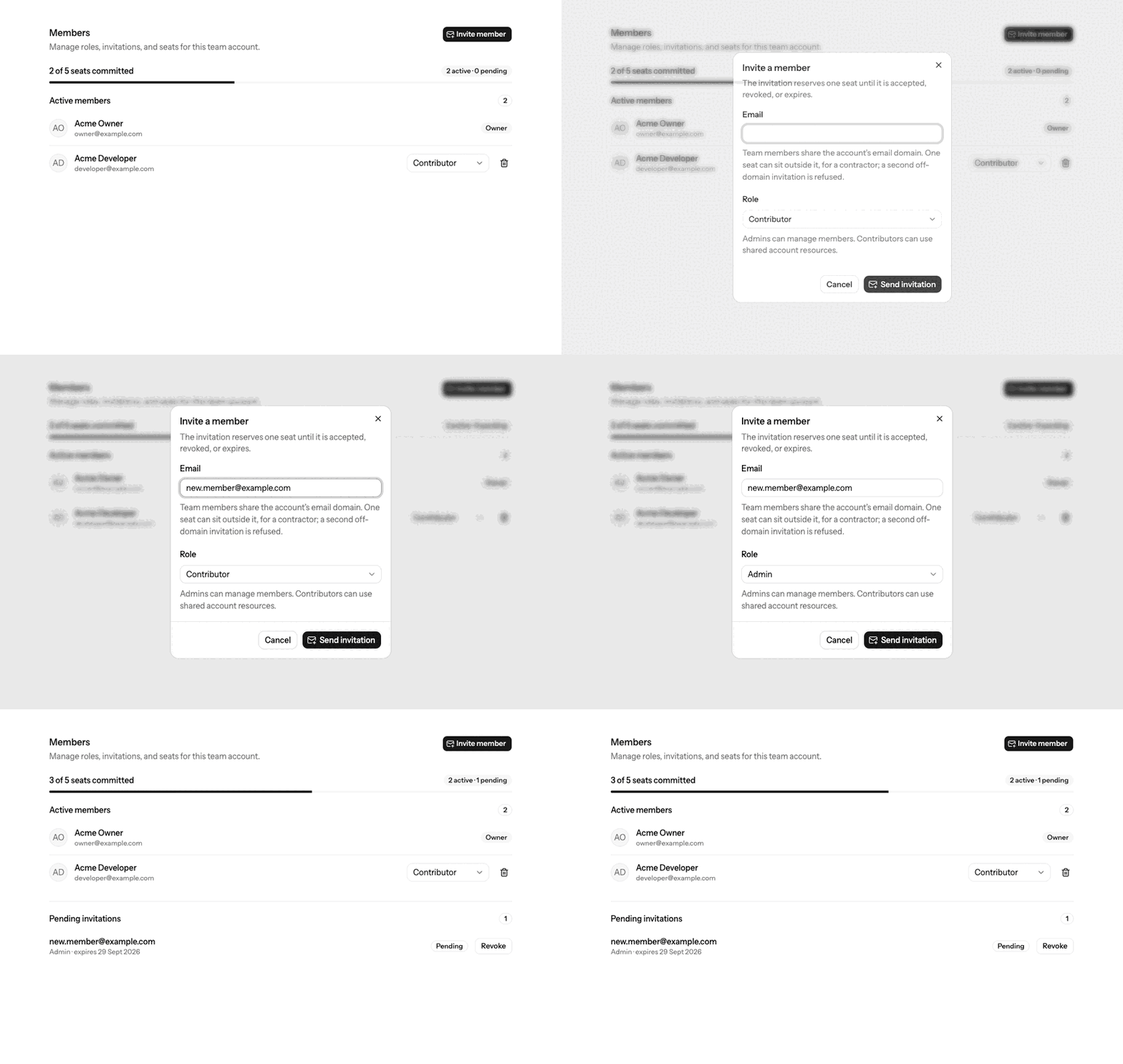
- Check the seat line before inviting anyone. For example, 3 of 5 seats committed means two more active members or pending invitations can be added.
Invite a member
- Select Invite member.
- Enter the person's email address.
- Choose Contributor for shared-resource access or Admin for member-management access.
- Select Send invitation.
- Confirm the address appears under Pending invitations and that the committed-seat count increases.
Team members normally share the account's email domain. One seat may use a different domain for a contractor; the API refuses a second off-domain invitation. Enterprise accounts instead require an exact verified company domain.
Change a role or revoke an invitation
Change an active member's role
- Find the member under Active members.
- Open the role selector and choose Admin or Contributor.
- Wait for the member list to refresh and confirm the selected role remains visible.
The owner role is not available in the role selector. If the main contact must change, contact Autohand Support. The reassignment requires an active, verified Autohand account, makes the previous owner an admin, records the reason, and emails both people.
Revoke a pending invitation
- Find the address under Pending invitations.
- Select Revoke.
- Confirm the invitation disappears and the committed-seat count decreases.
Remove a member
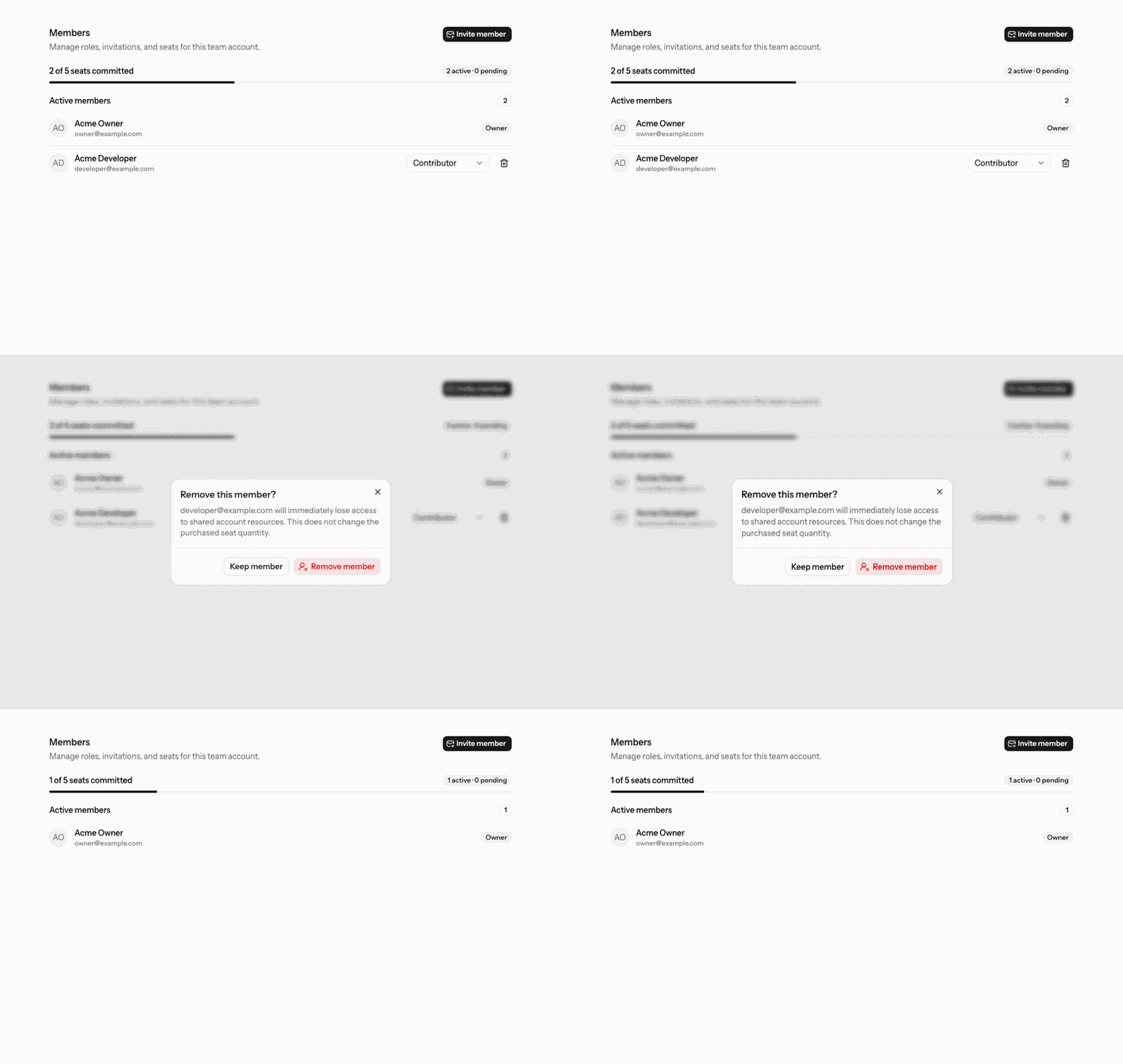
- Find the member under Active members.
- Select the remove button beside their role.
- Read the email in the confirmation dialog and select Remove member.
- Confirm the person no longer appears in the active list.
Removal immediately ends access to shared account resources. It frees the committed seat inside Console, but it does not change the purchased Stripe subscription quantity.
Console and API behavior
Console uses the selected account ID for each membership request. The authenticated session must have access to that account, and the API checks the role, seat limit, invitation state, and email rules again.
| Action | API route | Result |
|---|---|---|
| List members | GET /v1/accounts/:accountId/members | Returns active members and pending invitations. |
| Invite | POST /v1/accounts/:accountId/invitations | Reserves a seat and sends the account invitation email. |
| Change role | PATCH /v1/accounts/:accountId/members/:memberId | Updates an active non-owner member. |
| Revoke invitation | DELETE /v1/accounts/:accountId/invitations/:invitationId | Invalidates the token and releases the committed seat. |
| Remove member | DELETE /v1/accounts/:accountId/members/:memberId | Ends shared-resource access and releases the committed seat. |
Troubleshooting
- Invite member is disabled
- The account has reached its seat limit, membership is still loading, or your role cannot manage members. Revoke an unused invitation, remove an unneeded member, or ask the owner for access.
- The invitation email is wrong
- Revoke it and create a new invitation. An invitation can only be accepted by the exact email address it names.
- The person cannot accept
- Confirm they signed in with the invited address and verified it. If the invitation is older than seven days, ask the trial administrator to resend it.
- The seat count did not change
- Refresh Members. If the member action succeeded but the counter still differs, contact Support with the Team account ID.
Completion checkpoint
The active-member list, pending-invitation list, and committed-seat count should describe the same Team state. Each intended admin or contributor should appear once, and every pending address should belong to someone who still needs access.