Getting started
Use Autohand Console
Console is the account home for Autohand Code: see usage and model access, create API keys, review sessions, and manage the Code clients connected to your account.
Sign in
- Open console.autohand.ai.
- Select Continue to Autohand sign in, or request a one-time email link.
- Return to Console after authentication. The overview opens with your account health and first-party model access.
The same Autohand account works in Console and Code. To sign a terminal in, run /login inside an interactive Autohand Code session; it opens the device authorization flow in your browser.
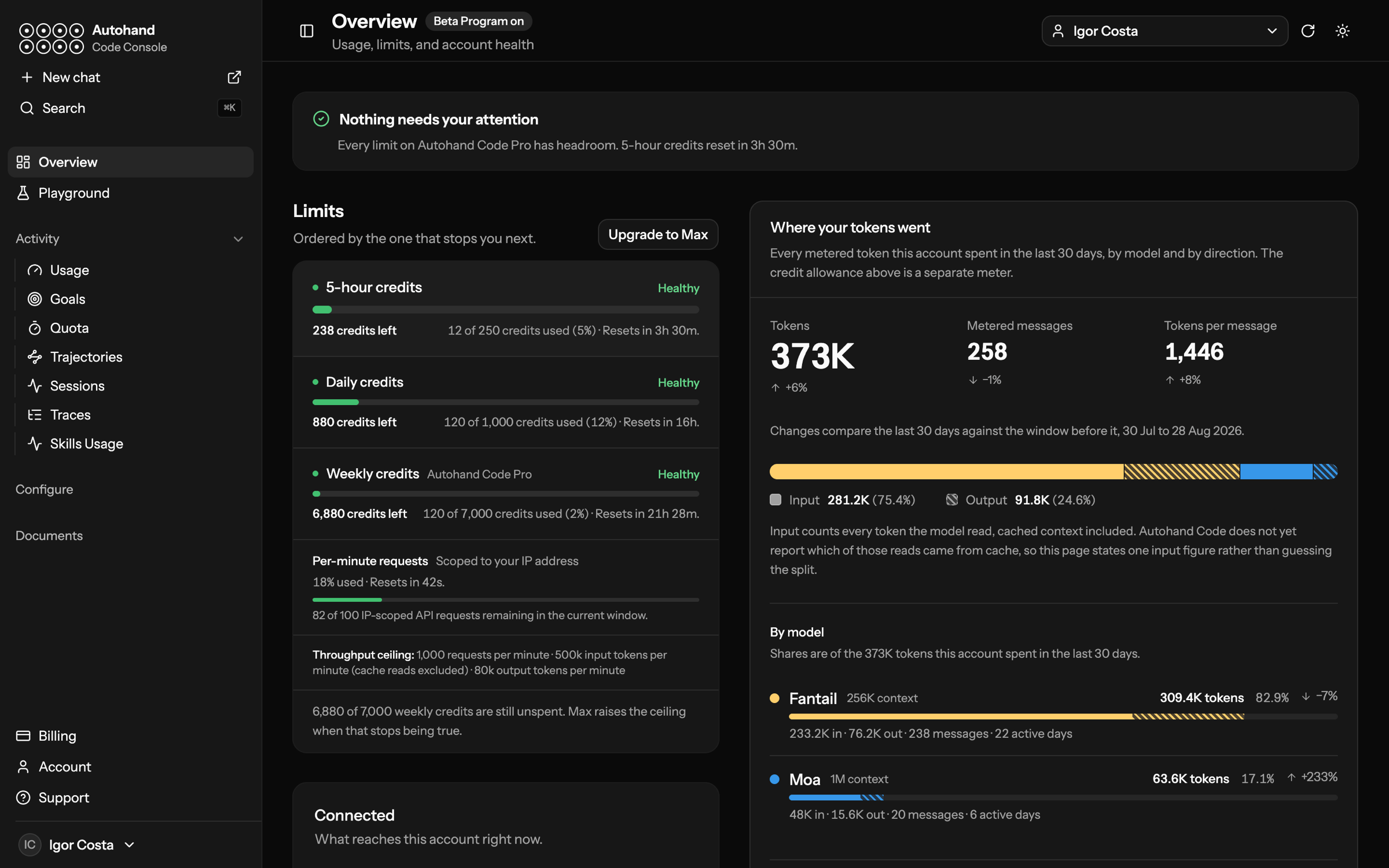
Check usage and limits
Open Usage to see the quota windows your plan actually enforces, their reset times, and request-throughput limits. Console does not present an uncapped time period as a quota.
- Usage summary switches between 7 days, 14 days, 30 days, and lifetime views for synchronized sessions and tokens.
- Quota windows show only limits that apply to the account, such as five-hour, daily, weekly, or monthly windows. Reset times use your browser's local time.
- Rate limit is separate from your plan allowance. It describes short-term request capacity for the current scope.
- Sessions are synchronized from signed-in Code clients. A missing or delayed session does not mean your source code was uploaded to Console.
For the matching terminal view, see monitor usage and peer sessions from Autohand Code.
Create and revoke API keys
Use API Keys for a server, CI job, or local SDK app. Give each client or environment its own recognizable name so that you can revoke it without interrupting another integration.
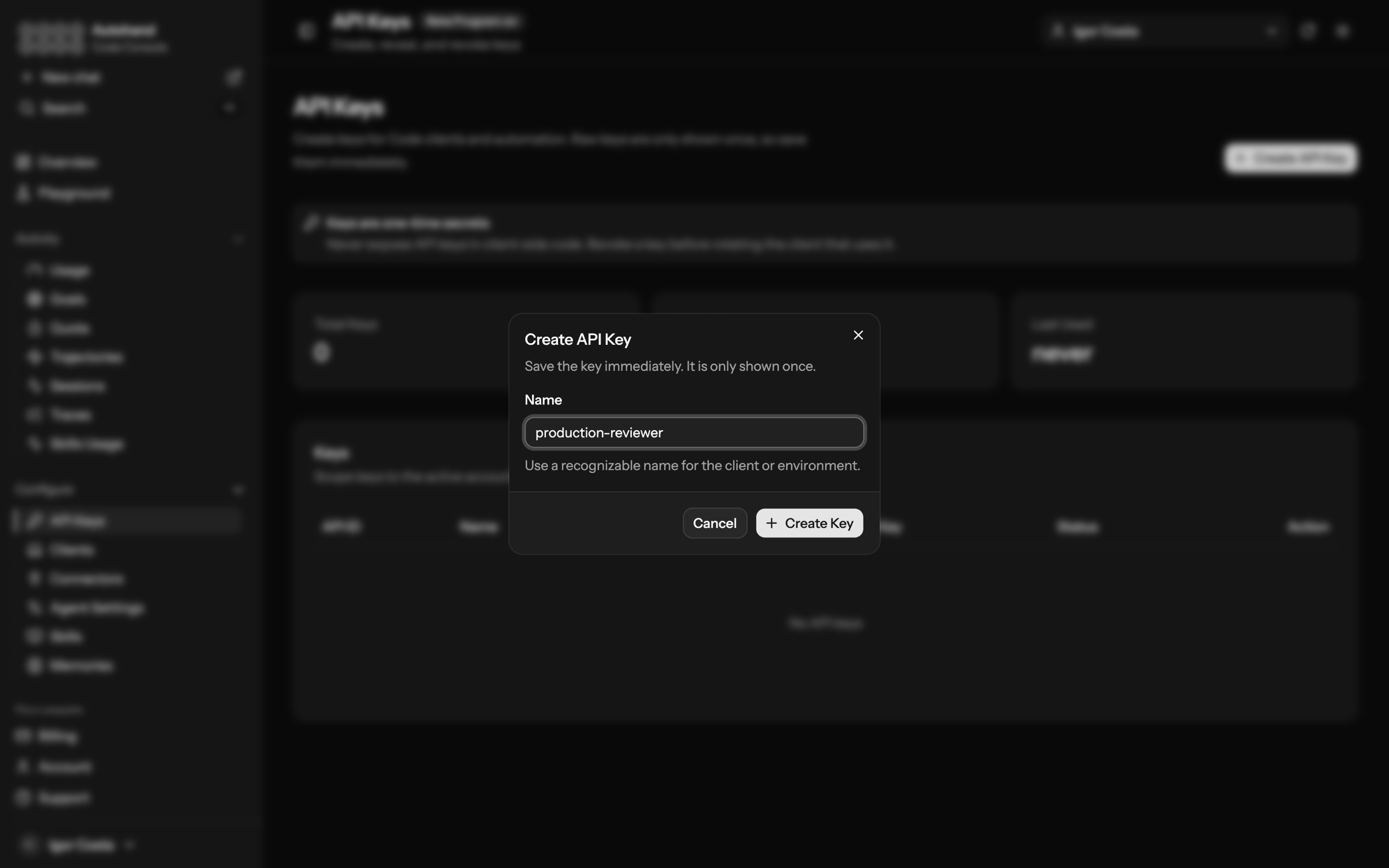
- Select Create API Key.
- Enter a name such as
production-reviewerorci-release-check. - Select Create Key, then copy the raw value immediately.
- Store it in a server-side secret manager or the environment that launches the app.
Keys can be revoked from this page. Revoke the old key before or immediately after rotating the application that uses it. Continue with the SDK API-key tutorial for a working TypeScript service.
Manage Code activity
| Console area | Use it for |
|---|---|
| Sessions | Review synchronized session and token history across your Code clients. |
| Memories | View, create, or delete user-level memories. Console changes arrive on a machine at its next CLI sync. |
| Clients | See devices and Code clients connected to the account. |
| Connectors | Manage account-level MCP connectors that Autohand Code reconciles after sign-in. |
| Agent Settings | Inspect reusable Code settings and profiles for a consistent setup across clients. |
| Billing and Account | Review your plan, invoices, payment methods, profile, privacy controls, exports, and account deletion. |
Choose a model
Console surfaces first-party access to Fantail, the latency-first 256K-context model for focused coding loops, and Moa, the reasoning-first 1M-context model for broader repository work. Use the full model guide to choose a model, then select it in Code with /model.